Setting up Traefik for my Homelab
— traefik, homelab, cloudflare — 11 min read
Overview
TL;DR -- skip past this section straight to the "Docker Compose Setup" if you want to take a look at the specifics of how I got docker (and non-docker) services proxied by Traefik, and accessible both locally and over Tailscale.
I've recently started dabbling with self-hosting software at home, as a way of divesting myself an increasingly subscription-based software market, and teaching myself more about technologies I take for granted when using AWS at work.
Some examples are pi-hole, and Jellyfin. Given that most of this software is stuff I use when at home, for the longest time I was content with using a combination of local IP addresses, and localhost to access them.
Eventually though I found myself wishing I could access some of my stuff when I was away from home -- I briefly dabbled with exposing stuff to the internet using port-forwarding and Dynamic DNS (using DuckDNS), scratching that when I realised the potential for attackers, especially since I wasn't using SSL certificates when I first started! After a few more abortive attempts using Nginx Proxy Manager, I settled on using Tailscale to access my devices from anywhere I wanted which worked very well for me. However, Tailscale only solved the problem of accessing services away from home -- it felt wrong to me access services over plain HTTP (even with a VPN handling the tunneling), and having to use IP addresses and ports, instead of readable, and easy-to-remember URLs. In addition, software like Jellyfin and Pi-hole don't support consistent SSL certificate provisioning and management, if they even worked in the first place.
Enter: Traefik.
Disclaimer: In my research I came across Caddy as well, but after a quick look at the docs, I wasn't happy with the non-standard syntax (for me) for Caddyfiles.
The Challenge
For the purposes of this example, I'm going to use the traefik/whoami container as an example for a docker container I want accessible through Traefik, both locally and over Tailscale, secured with an SSL certificate.
We can access the whoami service over HTTP using an IP address and port combo like http://192.168.0.26:8053.
I want to:
- Access the service over HTTPS, without needing to terminate TLS on the service itself
- Provision an easy-to-remember URL like https://whoami.example.tld
- Access the service seamlessly using similar URLs when at home, or when connected to my network using Tailscale
Prerequisites
- Docker: I'm using Docker v29.1.2, on Debian 13
- A domain that you own (like
example.tld): a domain is an important part of this setup, since it allows you to use a non-local eTLD+1 without worrying about local DNS records for each device and network involved. I'm using Cloudflare as my domain registrar, and name server - Basic networking knowledge: Prior to starting this whole experiment, I didn't know much about some Docker fundamentals like networking, and how SSL certificates could be provisioned over Let's Encrypt. With that said, I also have years of experience working with, and managing load balancers, SSL certificates, VPCs, and managed Docker-based services like ECS and EKS in AWS-land. Most of the knowledge I have from working with AWS wasn't directly applicable in this case, but it did mean that I was able to diagnose and debug issues with my setup much faster, than if I did not have the knowledge.
Docker Compose Setup
Setup (or modify) your docker-compose.yaml file to include the Traefik proxy service.
services: traefik: image: 'traefik:v3.6' restart: unless-stopped container_name: traefik # Isolate the Traefik service to its own network. networks: - proxy security_opt: - no-new-privileges:true volumes: - /path/to/traefik.yml:/etc/traefik/traefik.yml:ro - ./traefik/letsencrypt:/letsencrypt - /var/run/docker.sock:/var/run/docker.sock:ro ports: - "80:80" - "443:443" # Loaded from `.env` file in same directory as the compose file. environment: - CF_API_EMAIL=${CF_API_EMAIL} - CF_DNS_API_TOKEN=${CF_DNS_API_TOKEN} # This is needed to allow for traefik to resolve containers that use host-mode networking, and/or host services. extra_hosts: - "host.docker.internal:172.17.0.1" labels: # Proxy the Traefik API and dashboard. - "traefik.enable=true" - "traefik.http.routers.dashboard.rule=(Host(`traefik.vpn.lab.example.tld`) || Host(`traefik.lab.example.tld`)) && (Path(`/`) || PathPrefix(`/api`) || PathPrefix(`/dashboard`))" - "traefik.http.routers.dashboard.entrypoints=websecure" # Refer to a special, Traefik-internal service. - "traefik.http.routers.dashboard.service=api@internal" # Configure basic auth, and `/dashboard` redirects when hitting `/`. - "traefik.http.routers.dashboard.middlewares=basicauth,dashboard-rr" # Use the Let's Encrypt certificate resolver. - "traefik.http.routers.dashboard.tls.certresolver=le" # Generate htpasswd string from: https://htpasswd.utils.com/ # Double escape `$` to prevent docker compose from changing them. - "traefik.http.middlewares.basicauth.basicauth.users=user:<hashed-password-string>" # Automatically redirect requests to https://traefik.lab.example.tld to go to https://traefik.lab.example.tld/dashboard/ # Match any characters after https:// that are NOT `/`, so we capture only the hostname. - "traefik.http.middlewares.dashboard-rr.redirectregex.regex=^https:\\/\\/([^\\/]+)\\/$$" - "traefik.http.middlewares.dashboard-rr.redirectregex.replacement=https://$${1}/dashboard/"
# Whoami service we want to proxy. whoami: image: 'traefik/whoami' container_name: 'whoami' networks: - proxy ports: # Expose container port 80 to host port 8053 - 8053:80 labels: - "traefik.enable=true" # Expose the whoami service over the specified domain. - "traefik.http.routers.whoami.rule=Host(`whoami.lab.example.tld`)" - "traefik.http.routers.whoami.entrypoints=websecure" - "traefik.http.routers.whoami.tls.certresolver=le" # Configure the healthcheck to hit port 80, and `/`. - "traefik.http.services.whoami.loadbalancer.server.port=80" - "traefik.http.services.whoami.loadbalancer.healthcheck.path=/" - "traefik.http.services.whoami.loadbalancer.healthcheck.timeout=3s" - "traefik.http.services.whoami.loadbalancer.healthcheck.interval=30s"
networks: proxy: driver: bridgeNote: The
proxydocker network isn't a requirement to get this setup working -- by default, if a container does not have anetworksparameter specified, it is attached to the default bridge network created by docker. However, for production setups, a dedicated docker network is recommended for network-level isolation.
Run docker compose up -d and confirm that your service's container is running using docker ps. If your service is accessible using something like curl http://localhost:8053, we're good to go!
Traefik Setup
Traefik works a bit differently compared to services I'm used to, in that it has two required configuration sources.
The install config (formerly known as static configuration) is placed in a traefik.yml file (mounted at /etc/traefik/traefik.yml
in the compose file above), with the routing configuration (formerly known as dynamic configuration) for services that require
proxying, stored alongside the service definitions themselves. I probably spent a couple of hours trying to figure out
why routing configurations stored in my traefik.yml weren't working as expected! It also does the unique thing of
combining configurations from multiple sources (like docker service labels properties), along with any YAML configurations
defined for the service.
To keep things simple for myself, I chose to:
- Store static configuration for Traefik -- things like certificate generation and DNS-01 challenge attributes, entryPoints,
log levels for log files -- in the
traefik.ymlfile - Define routes, service URLs, and healthchecks as docker labels attributes
My traefik.yml file is as follows:
entryPoints: web: address: ':80' http: # Permanently redirect all requests to :443 redirections: entryPoint: to: websecure scheme: https permanent: true websecure: address: ':443'
api: insecure: false dashboard: true disabledashboardad: true
certificatesResolvers: le: acme: storage: /letsencrypt/acme.json dnsChallenge: provider: cloudflare propagation: delayBeforeChecks: 10s
log: level: INFO
providers: docker: exposedByDefault: falseI've exposed two entryPoints -- port 80, and port 443, with requests to port 80 redirected to 443 to force HTTPS connections
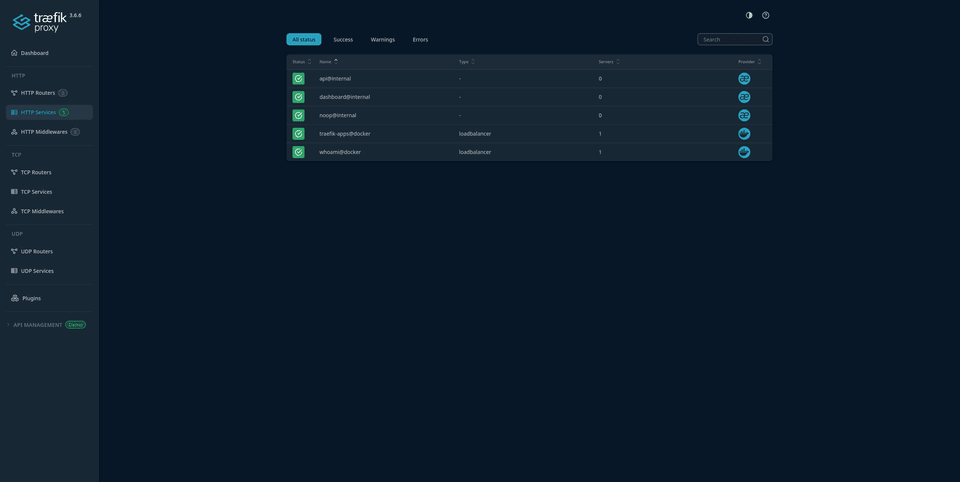
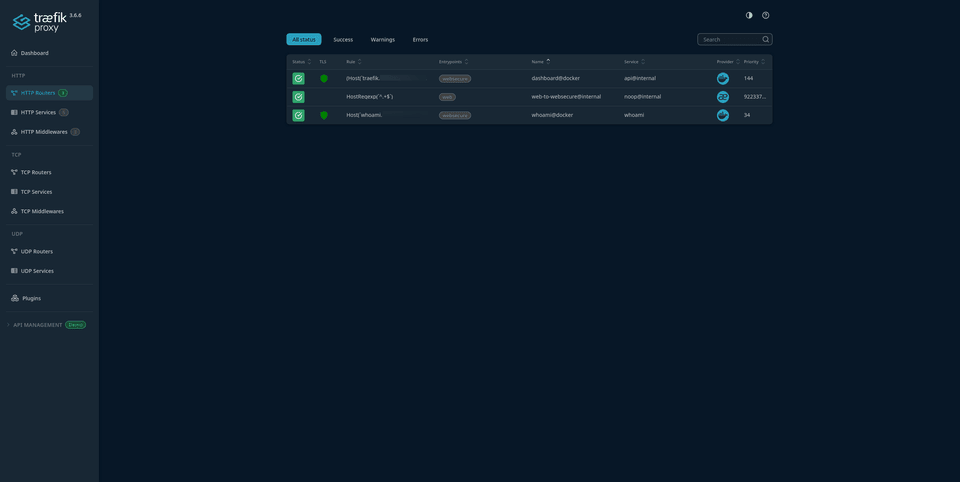
I use the inbuilt Traefik dashboard to check if my configuration has been parsed by Traefik as expected.
I've defined a Let's Encrypt (LE) Certificate Resolver, that uses Cloudflare to issue DNS-01 challenges, and dynamically
issue certificates for any subdomains I've assigned to my proxied services. Traefik has been blocked from exposing any Docker services
it automatically finds from the docker socket, by setting providers.docker.exposedByDefault to false.
To actually expose a service through Traefik, I've used the docker's labels features to update Traefik's dynamic configuration:
services: # .... TRUNCATED .... # Whoami service we want to proxy. whoami: # .... TRUNCATED .... labels: - "traefik.enable=true" - "traefik.http.routers.whoami.rule=Host(`whoami.lab.example.tld`)" - "traefik.http.routers.whoami.entrypoints=websecure" - "traefik.http.routers.whoami.tls.certresolver=le" - "traefik.http.services.whoami.loadbalancer.server.port=80" - "traefik.http.services.whoami.loadbalancer.healthcheck.path=/" - "traefik.http.services.whoami.loadbalancer.healthcheck.timeout=3s" - "traefik.http.services.whoami.loadbalancer.healthcheck.interval=30s"The subdomains assigned to the service are defined by the traefik.http.routers.whoami.rule label. In this example, the subdomain whoami.lab.example.tld
is used by Traefik to issue a Let's Encrypt certificate for the whoami service. I've also defined a simple healthcheck that I can use to view the
status of a service on the Traefik dashboard. Finally, in order to actually issue a certificate for the service, the traefik.http.routers.whoami.tls.certresolver=le option
uses the previously defined le certificate resolver (from the traefik.yml static configuration file.)
Cloudflare Setup
The subdomain, whoami.lab.example.tld is what I want to use to access the service when on the same LAN as the homelab.
To make this happen, I added an A record for *.lab.example.tld that points to 192.168.0.26, which is the local IP address for my homelab.
Testing all of our work
On your LAN, visit https://whoami.lab.example.tld using a web-browser. The first time you visit the domain after your setup is complete,
you will most likely see a self-signed certificate (used by default by Traefik when it's waiting on certificate issuance to complete) warning
from your browser. Feel free to ignore this for the time being, as in my experience, it takes about 60 seconds for Traefik to work its magic
when it comes to issuing certificates for new subdomains. The next time you visit the page, after a couple of minutes have passed,
you should no longer see the same warning, and should instead be able to access the URL with a valid SSL certificate!
Adding Tailscale support
Adding Tailscale support at this point is super easy, since we've already done the hard part of configuring Traefik, Docker, Cloudflare, and Let's Encrypt to work together.
To make things easy, I chose to use a different subdomain when accessing services using Tailscale, vs. locally -- i.e., to access whoami.lab.example.tld when using Tailscale, I'd use whoami.vpn.lab.example.tld.
To achieve this:
- Ensure that the homelab server is connected successfully to your Tailscale tailnet, and make note of it's machine IP (should be something like 100.X.Y.Z)
- Add another wildcard
Arecord to your Cloudflare domain pointing to the Tailscale machine IP, with the Tailscale specific subdomain --*.vpn.lab.example.tld=>100.X.Y.Z - Update your
traefik.http.routers.whoami.ruleto also include the Tailscale subdomain, as shown below
services: # .... TRUNCATED .... # Whoami service we want to proxy. whoami: # .... TRUNCATED .... labels: - "traefik.enable=true" # Allow access from both LAN and Tailscale VPN. - "traefik.http.routers.whoami.rule=Host(`whoami.vpn.lab.example.tld`) || Host(`whoami.lab.example.tld`)" # ... TRUNCATED ...You should now be able to access your service over Tailscale as well!
Some of the weird errors I encountered when setting all of this stuff up
A fairly noticeable downside of Traefik, is its lack of error messages when it comes to debugging issues with its config. For example, if a routing rule has
incorrect syntax, Traefik doesn't really log any errors, and instead fails with inscrutable 404 or 502 errors. I've found that setting log.level=DEBUG in the traefik.yml
file, and using the dashboard really helps in figuring out what is potentially going wrong with your setup, although be warned that using debug logging
with Traefik is not meant for production logs, as it emits a ton of logs even in a short period of time.
Routes not defined correctly using Docker labels on the container
Setup debug logging, and the dashboard. Confirm that your rules show up as expected on the Routers tab on the dashboard. Inspect logs using docker logs traefik, where
traefik is the name of your Traefik docker container. If you do not know the name of the container, use docker container list --format "table {{.Names}}\t{{.Images}}"
to find the container running the Traefik image.
Routes defined on Traefik service itself need to have service tag to work
When using Traefik to proxy host services (i.e. services running outside of Docker), you'll need to add Docker labels to the traefik service itself. When proxying multiple
services this way, you need to ensure that the HTTP router for each service has traefik.http.routers.svc-a.service=svc-a defined, else Traefik won't know what to do with it.
Here's a snippet from my Traefik config that I use to expose both the Traefik dashboard, and Pi-hole running on a device on the LAN:
services: traefik: # ... TRUNCATED ... labels: - "traefik.enable=true" - "traefik.http.routers.dashboard.rule=(Host(`traefik.vpn.lab.example.tld`) || Host(`traefik.lab.example.tld`)) && (Path(`/`) || PathPrefix(`/api`) || PathPrefix(`/dashboard`))" - "traefik.http.routers.dashboard.entrypoints=websecure" - "traefik.http.routers.dashboard.service=api@internal" - "traefik.http.routers.dashboard.middlewares=basicauth,dashboard-rr" - "traefik.http.routers.dashboard.tls.certresolver=le" # Generate htpasswd string from: https://htpasswd.utils.com/ # Double escape dollar signs to prevent docker compose from changing it - "traefik.http.middlewares.basicauth.basicauth.users=user:<hashed-password-string>" # Match any characters after https:// that are NOT `/`, so we capture only the hostname. - "traefik.http.middlewares.dashboard-rr.redirectregex.regex=^https:\\/\\/([^\\/]+)\\/$$" - "traefik.http.middlewares.dashboard-rr.redirectregex.replacement=https://$${1}/dashboard/" # Proxy Pi-hole.local - "traefik.http.routers.ph.rule=Host(`ph.vpn.lab.example.tld`) || Host(`ph.lab.example.tld`)" - "traefik.http.routers.ph.entrypoints=websecure" - "traefik.http.routers.ph.service=ph" - "traefik.http.routers.ph.tls.certresolver=le" - "traefik.http.routers.ph.middlewares=ph-rr" - "traefik.http.services.ph.loadbalancer.server.url=http://192.168.0.78" - "traefik.http.services.ph.loadbalancer.healthcheck.path=/admin" - "traefik.http.services.ph.loadbalancer.healthcheck.timeout=3s" - "traefik.http.services.ph.loadbalancer.healthcheck.interval=30s" # Match any characters after https:// that are NOT `/`, so we capture only the hostname. - "traefik.http.middlewares.ph-rr.redirectregex.regex=^https:\\/\\/([^\\/]+)\\/$$" - "traefik.http.middlewares.ph-rr.redirectregex.replacement=https://$${1}/admin/"Certificate generation issues?
Use debug logs to figure out what's going wrong
Dashboard access issues?
Don't forget to use traefik.lab.example.tld/dashboard/ with the trailing slash at the end! Without it, Traefik doesn't know what to do with your request.